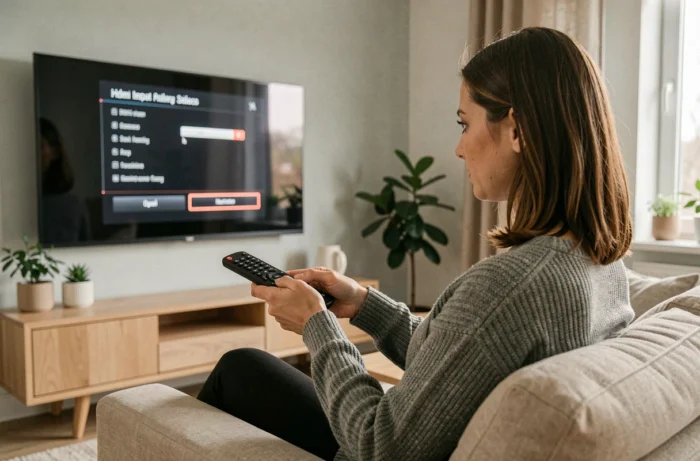
Most TCL TVs start on their home screen, whether it’s the Google TV interface or Roku. For daily use with a box, console, or Blu-ray player, this behavior requires manually selecting the HDMI source each time the TV is turned on. Changing the startup behavior of the TV allows you to skip this step and directly display the signal from the connected device.
Startup Setting on TCL Roku TVs
TCL TVs equipped with the Roku system include a dedicated setting for startup behavior. This setting, often overlooked in tutorials, provides the option to choose the input displayed upon power-up, bypassing the Roku home screen.
To access it, open the TV settings from the home screen, then navigate to the “System” section and then “Power.” A menu named “Power On” offers several options: Home (home screen), HDMI 1, HDMI 2, or other available inputs depending on the model.
Select the HDMI input corresponding to the port where your device is connected. The TV will automatically switch to this source each time it is turned on. The change is immediate and does not require a restart.
A complete guide details the procedure to turn on your TCL TV directly to the HDMI input based on the different embedded operating systems.
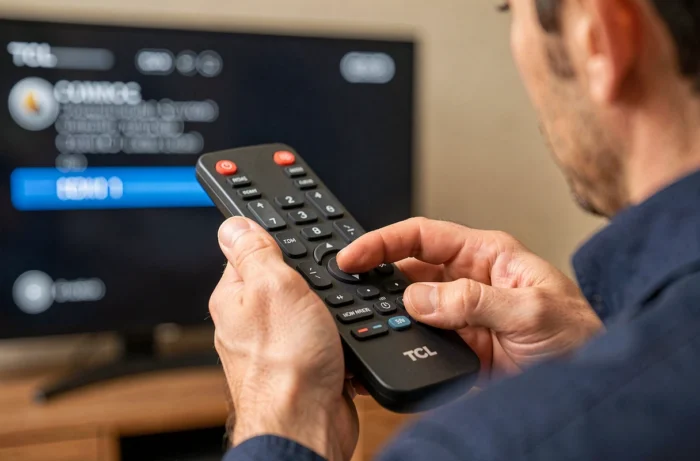
TCL Google TV: Utilizing the “Power-on behavior” Setting
Recent TCL models running Google TV have a slightly different approach. The system offers a setting called “Power-on behavior” in the advanced settings, which determines what the TV displays at startup.
Accessing the Setting
Press the settings button on your TCL remote (gear icon). Navigate to “System,” then “Power and energy.” The sub-menu “Power-on behavior” appears with two main options.
- The first option consistently returns to the Google TV home screen, with its content recommendations and navigation bar
- The second option, often labeled “Last used input,” restarts the TV on the active source from the last shutdown
- On some models, a third option allows you to manually designate a specific HDMI input as the default source
For use with a single box or console, the “last used input” mode is sufficient in most cases. The TV automatically retrieves the HDMI signal without manual intervention, provided the connected device is also powered on.
Special Case of CEC
The HDMI-CEC (Consumer Electronics Control) protocol can interfere with this setting. If CEC is enabled and multiple devices are connected, the TV may switch to the device that powers on last rather than the desired one.
To avoid this conflict, there are two options: either disable CEC in the TV settings (under “Inputs” or “HDMI-CEC”), or keep CEC active only on the priority device. On TCL Google TVs, CEC is typically found under “Settings > Inputs > HDMI Control.”
Forcing HDMI Startup When the Menu Does Not Offer It
Some TCL models, particularly older series running Android TV, do not provide a native setting for startup behavior. The TV consistently returns to the home screen, and no setting allows for modification of this behavior in the standard menus.
Using CEC to Your Advantage
In this scenario, the CEC protocol becomes an ally. Enable CEC in the HDMI settings of the TV. Connect your main device (box, console) to the HDMI port that supports CEC, often HDMI 1.
Then configure your external device to send a power-on signal to the TV. Most operator boxes and recent consoles include this function. When the device starts, it turns on the TV and forces the switch to its HDMI input. CEC turns the connected device into a source trigger.
AutoHDMI Application for Android TV and Google TV
A third-party application called AutoHDMI, which has recently emerged, automates the switch to a chosen HDMI input after a complete restart or power cut. This application works on compatible Android TV and Google TV devices.
Its operation relies on a service that detects the system startup and sends the source change command. Installation is done via the integrated Play Store on the TV. Once configured, the application runs in the background without further interaction.
Check Functionality After Configuration
Regardless of the chosen setting, a simple test can validate the configuration. Turn off the TV with the remote, wait a few seconds, then turn it back on.
- If the TV directly displays the signal from the HDMI device without going through the home screen, the setting works
- If the home screen briefly appears before switching, CEC is likely active and taking over with a slight delay
- If the TV remains on the home screen, check that the connected device is powered on and that the HDMI cable is properly inserted into the selected port
A faulty or poorly connected HDMI cable can prevent automatic source detection. Test with another cable if in doubt before changing the TV settings.
The choice between native setting, CEC, or third-party application depends on the operating system of your TCL and the number of connected devices. For simple use with a single device, the built-in startup setting remains the most reliable and straightforward solution.